

What gets indexed
You can configure the type of Salesforce object that is indexed, such as Account, Opportunity, or Case. Onyx creates one document for each record of that object. If you pick none, Onyx indexes Account. A document contains the record’s fields, plus the fields of the records directly related to it. So a document for an account also includes that account’s contacts, opportunities, cases, and notes.What is not indexed
- Files and attachments
- Encrypted fields
- Salesforce system objects, such as history, sharing, feed, and Chatter records
- Record IDs and date fields
- Records more than one step from the object you picked
- Records the connector’s credentials cannot access
Before you begin
You need:- An Onyx administrator account.
- A Salesforce edition with API access: Enterprise, Unlimited, Performance, or
Developer editions.
- Professional Edition needs the Web Services API add-on.
- Group and Essentials editions cannot use the API and cannot set up the connector in Onyx.
- A Salesforce user with the API Enabled permission who can see every record you want indexed. Onyx indexes as this user, so a read-only integration user works well.
OAuth
Username, password, and security token
Authenticate with OAuth
Onyx Cloud
An administrator must install the Onyx Salesforce OAuth package before users can authorize Onyx.Install the Onyx package
Set permitted users
Keep the packaged OAuth credentials
Self-hosted Onyx
Create an External Client App
External in Quick Find,
then open External Client Apps → External Client App Manager.
Select New External Client App and set Distribution State to Local.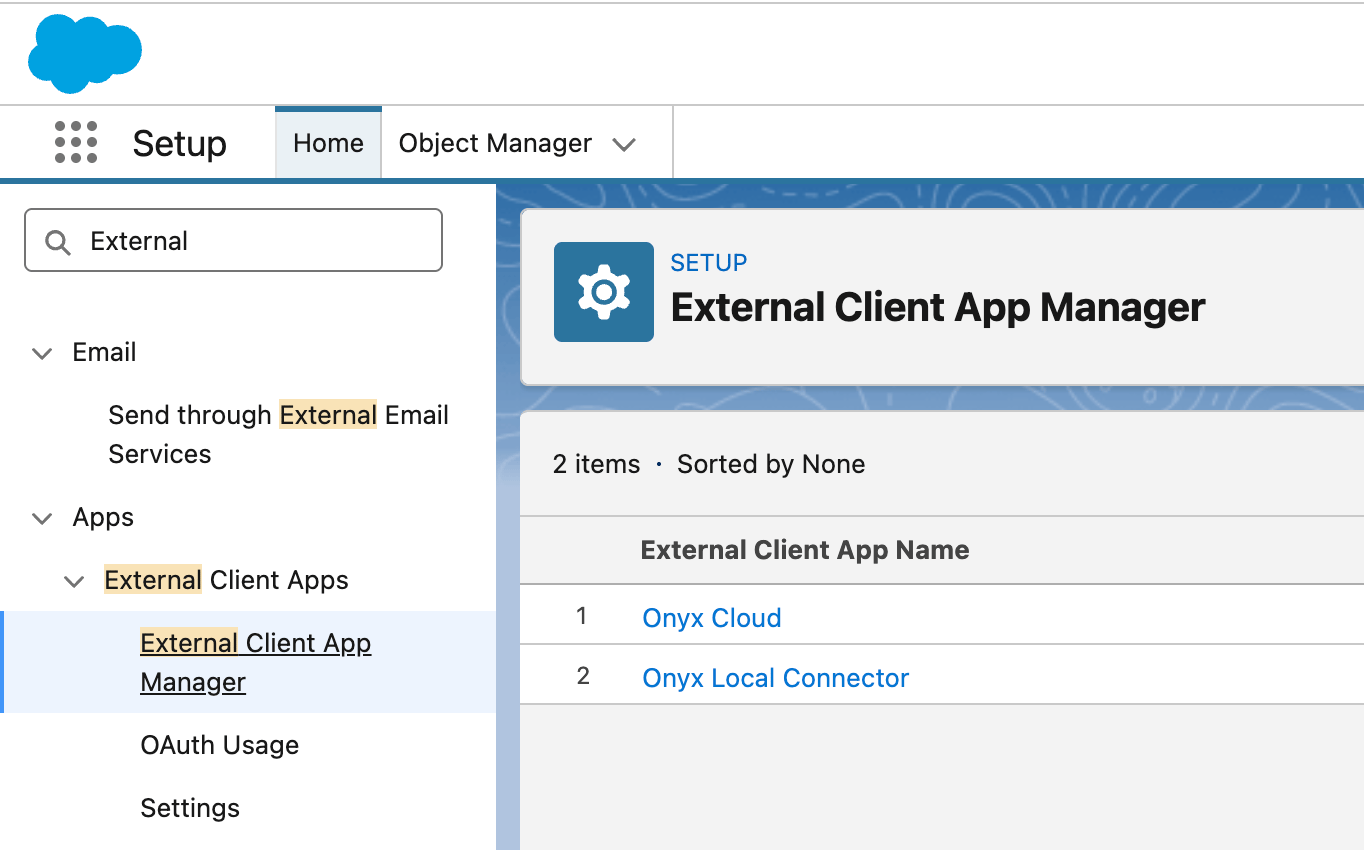
Configure OAuth
/connector/oauth/callback/salesforce:Add OAuth scopes
- Manage user data via APIs (
api) - Perform requests at any time (
refresh_token)
Configure OAuth security
- Require a secret for the web server flow
- Require a secret for the refresh token flow
- Require PKCE for supported authorization flows
- Refresh token rotation
Save the app credentials
Set permitted users
Configure Onyx
.env file, then restart Onyx.
See Configuration for where that file lives in your deployment.Authenticate with a security token
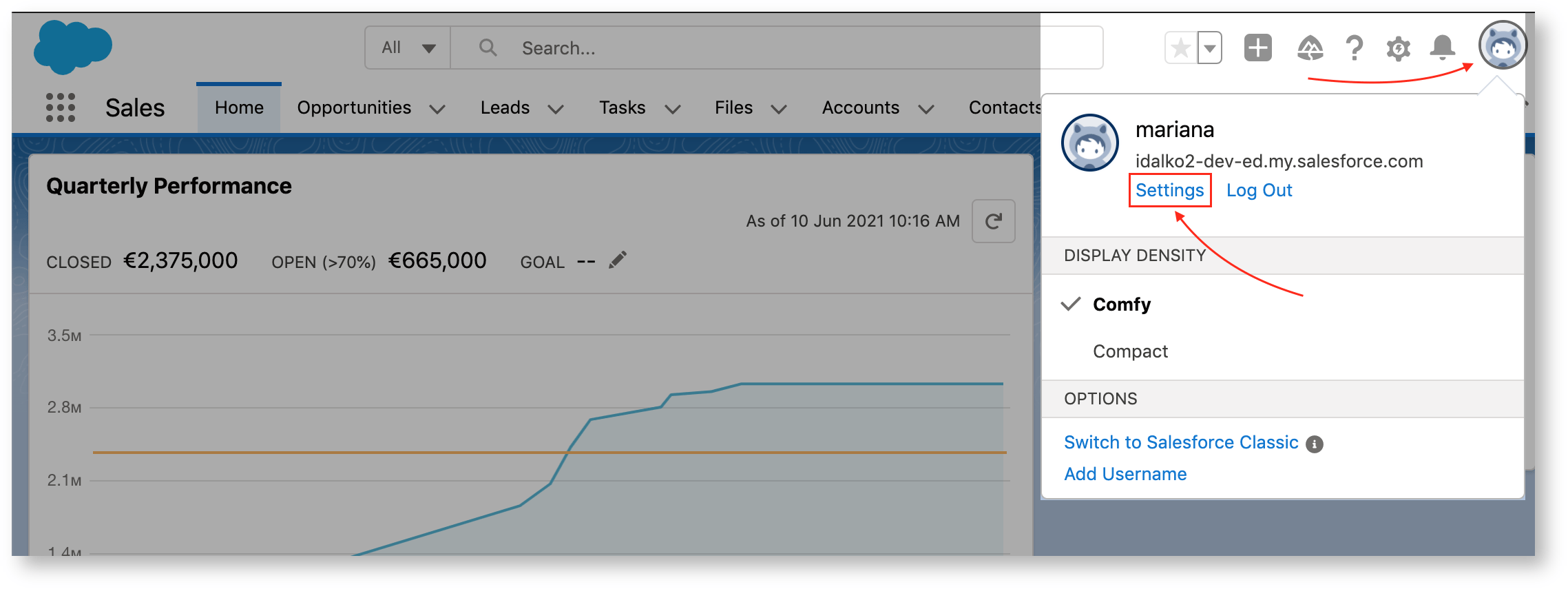
Open personal settings
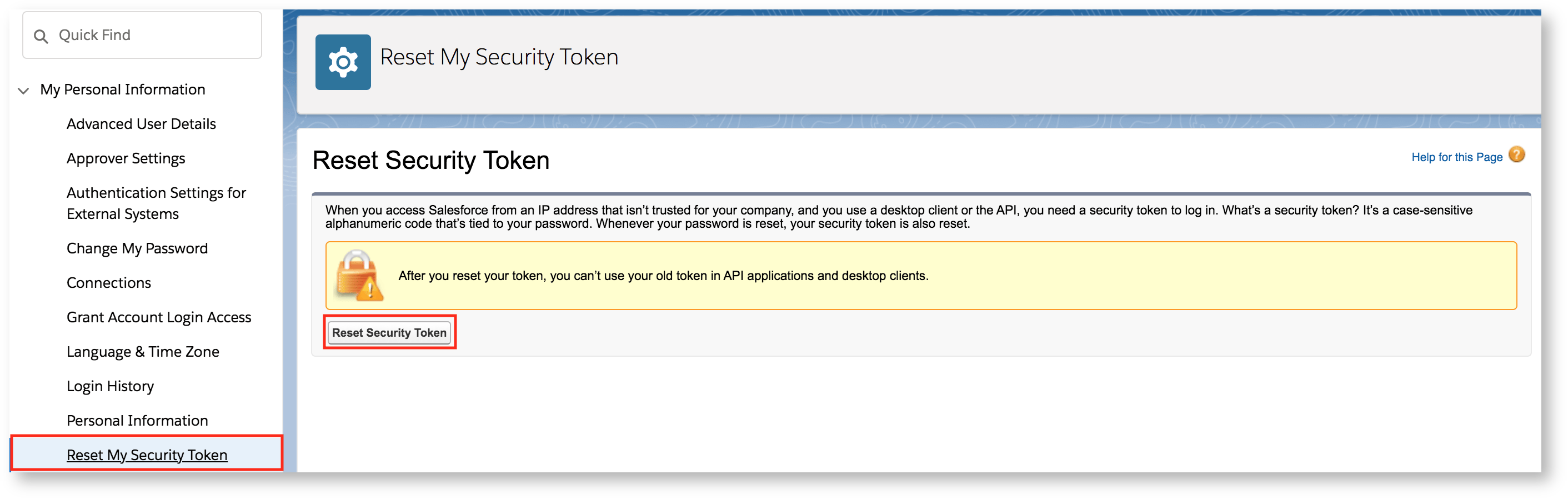
Reset the security token
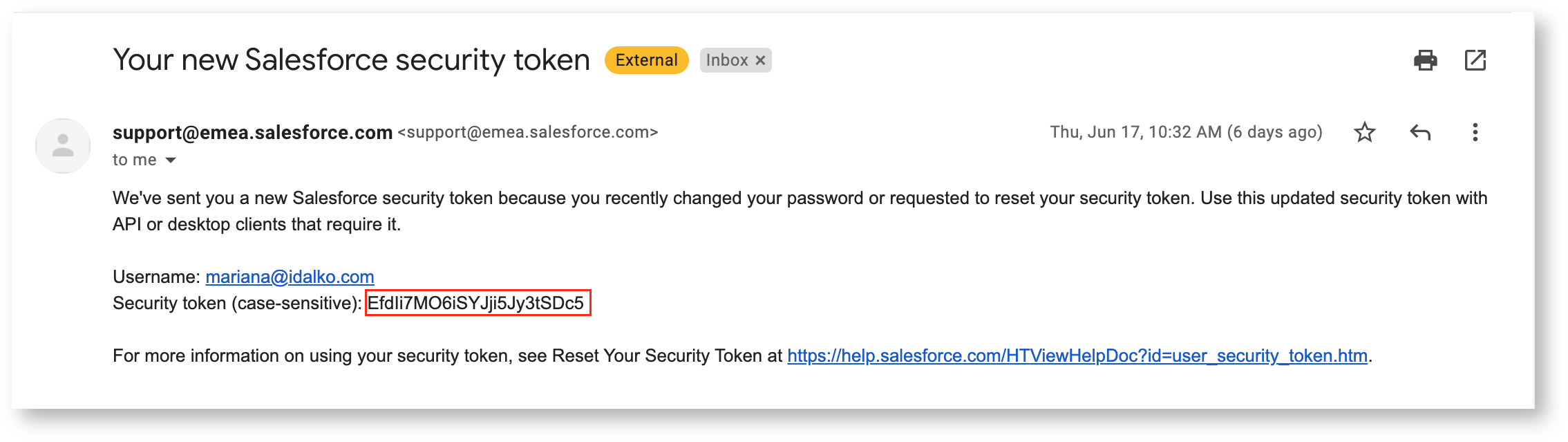
Get the token from your email
Configure the connector in Onyx
Open the Salesforce connector
Create a credential
- Connect with Salesforce: Enter your My Domain root, such as
https://company.my.salesforce.com. For a sandbox, use an address likehttps://company--dev.sandbox.my.salesforce.com. Then sign in to Salesforce. - Enter credentials manually: Enter the Username, Password, and Security Token. Turn on Is Sandbox Environment for a sandbox account.
Select the credential
Choose the objects to index
Choose the access type
Create and verify
Choosing objects
Simple takes a list of object names. Advanced takes JSON that names the exact fields and related objects to index.Simple
List the Salesforce objects you want a document for, one per entry. Use each object’s singular API name, soOpportunity rather than Opportunities. Custom objects keep their __c suffix.
Onyx then indexes every field on those records, and every field on the records related to them. On a large organization,
that makes for long documents and a slow first index.
Advanced
Write a JSON object. Each top-level key names an object you want a document for, and takes two settings:fields: the fields to index on that objectassociations: the related objects to include, each with its own list of fields
associations must be a direct child of the object above it.
Permission sync
Set the access type to Auto Sync Permissions, and an Onyx user sees only the Salesforce records they can read in Salesforce.- Onyx matches an Onyx user to a Salesforce user by email address. It checks the Salesforce username first, then the Salesforce email field, and it matches active users only. Someone with no match sees no Salesforce content.
- A single result can come back partly redacted. If you can read an account but not one of its opportunities, Onyx strips out the opportunity and keeps the rest.
- Users who are not signed in see no Salesforce content at all.
Troubleshooting
Failed to validate Salesforce credentials
Failed to validate Salesforce credentials
Reset My Security Token is missing from Salesforce settings
Reset My Security Token is missing from Salesforce settings
Nothing is indexed
Nothing is indexed
__c suffix on custom objects.
You also get no documents from an object the credential’s user cannot see.Associations not found in a parent object
Associations not found in a parent object
associations is not a direct child of the object above it, the two are the wrong way around,
or the name is not the object’s API name.Indexing is slow or runs out of memory
Indexing is slow or runs out of memory
REQUEST_LIMIT_EXCEEDED
REQUEST_LIMIT_EXCEEDED
The OAuth option is missing from the credential form
The OAuth option is missing from the credential form
SALESFORCE_CLIENT_ID and SALESFORCE_CLIENT_SECRET are missing. Set both,
then restart the API server and every background worker.Salesforce rejects the My Domain URL
Salesforce rejects the My Domain URL
The callback URL does not match
The callback URL does not match
A user sees no Salesforce results under permission sync
A user sees no Salesforce results under permission sync